Menu

Bring your AI knowledge into your code editor
Context Companion integrates with Cursor through the Model Context Protocol (MCP), giving Cursor access to your conversation history and knowledge base. Cursor automatically decides when to use this context, so you don't need to mention Context Companion in your questions.
Have conversations with ChatGPT, Claude, or Gemini about your project ideas, architecture, and decisions.


Save valuable conversations with Context Companion. AI creates summaries with topics and categories.

Open Cursor and start coding. Your brainstorming context is automatically available when you need it.

Before you begin, make sure you have:
Each user has their own unique connector key for security. You'll get this from the Context Companion extension.
Click the Context Companion icon in your browser toolbar.
Click on the "Connectors" tab and expand the "Cursor" section.
Click "Copy JSON Configuration for Cursor" — this includes your key and all required settings.
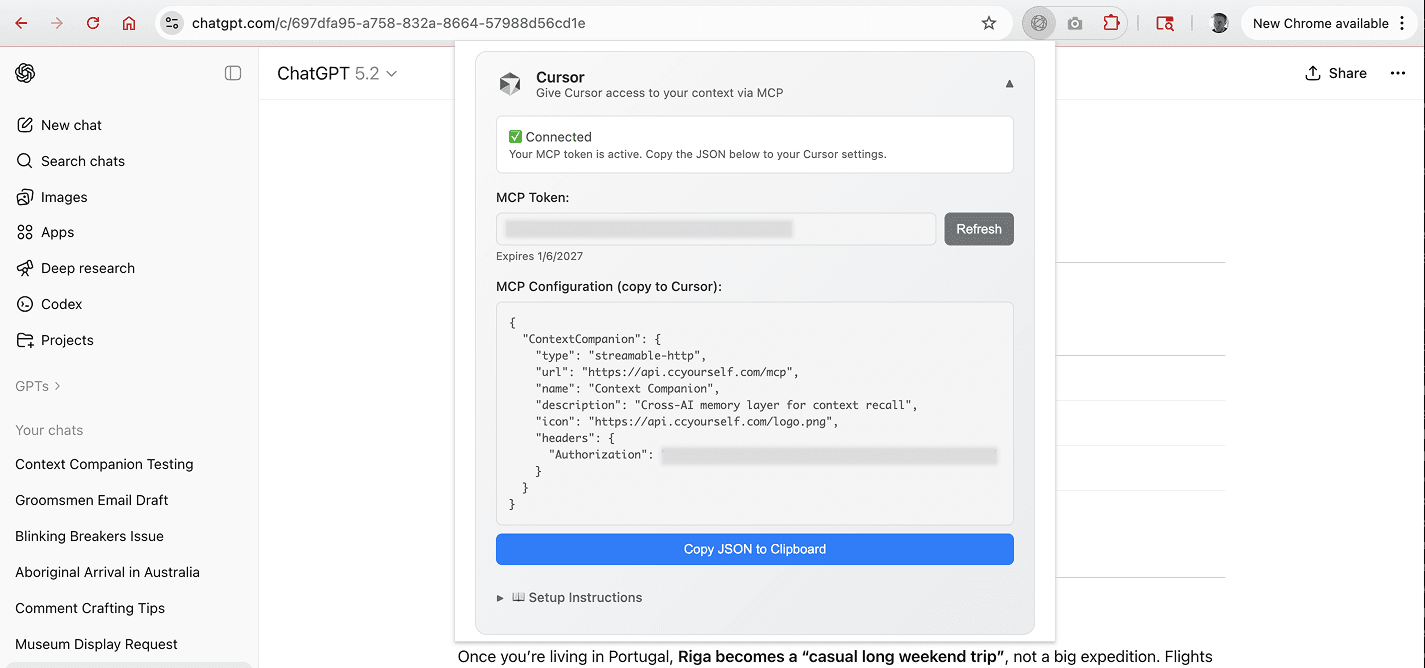
Press Cmd/Ctrl + Shift + P and type "Open User Settings (JSON)"
Find or create the "mcpServers" section and paste your configuration inside it.
Close and reopen Cursor. Check Settings → Features → MCP to verify Context Companion shows as connected.
Just ask Cursor naturally — it automatically queries Context Companion when relevant:
Yes! Cursor automatically decides when to query Context Companion based on your questions. You don't need to mention Context Companion explicitly — just ask naturally about past conversations or decisions.
Cursor can only read your summaries through the MCP connection. It cannot modify, delete, or access raw conversation content. Only the summarized knowledge you've captured is available.
No. Cursor connects directly to your Context Companion account via the MCP server. Once configured, it works independently of the browser extension.
Currently, Cursor is the only IDE we support via MCP. We're exploring integrations with other MCP-compatible tools in the future.